
搜索到
32
篇与
的结果
-
 Linux ssh免密登录脚本 免密登录脚本提前生成公钥和私钥,将脚本中的公钥替换成你生成后的公钥#!/usr/bin/env bash # --------------------------- # 颜色定义 # --------------------------- YELLOW='\e[93m' # 黄色(信息提示) GREEN='\033[32m' # 绿色(成功提示) RED='\033[31m' # 红色(错误提示) RESET='\e[0m' # 重置颜色 YELLOWS='\033[1;33m' RESETS='\033[0m' # --------------------------- # 日志输出函数 # --------------------------- inst_msg() { local msg="$1" local datetime=$(date +"%Y-%m-%d %H:%M:%S") echo -e "${YELLOW}INFO: [${datetime}] ${msg}${RESET}" } infos_msg() { local msg="$1" local datetime=$(date +"%Y-%m-%d %H:%M:%S") echo -e "${YELLOWS}\033[5mINFO: [${datetime}] ${msg}\033[25m${RESETS}" } info_msg() { local msg="$1" local datetime=$(date +"%Y-%m-%d %H:%M:%S") echo -e "${GREEN}INFO: [${datetime}] ${msg}${RESET}" } err_msg() { local msg="$1" local datetime=$(date +"%Y-%m-%d %H:%M:%S") echo -e "${RED}ERRO: [${datetime}] ${msg}${RESET}" >&2 #exit 1 } create_sshd(){ # 确保.ssh目录存在 mkdir -p /root/.ssh chmod 700 /root/.ssh # 检查公钥是否已存在 if grep -q "kexinzz@163.com" ~/.ssh/authorized_keys 2>/dev/null; then info_msg "公钥已存在" else # 添加公钥 echo "ssh-rsa AAAAB3NzaC1yc2EAAAADAQABAAACAQDkuyj2g8wMMebOPJSz4QvL4KR2HctUbTE1KEjLDCmMknlnALAO3bWPygQxYyi9SnDnKVhFiWfvyWZzRi8rASv0dYpfrIBsqrhtqvGgN1iteJPs+xqbgIq9KFTDPPbznOZjaGMAOySbqHT6/JtZd1Jtn7SEA146sdI/Hkrt9mNM3dAHp5E+ppSoJ8TzRq+rr+RGJ4raypCouniQZ7mbXqkCr3tGZLx+0beaTltm4Sm3qU6ChULc8sUBx14Zd40KZJb6Jgf7G6O6fw7tieeioZ0XaKvV8JvYHSQI43cXol+TG6rWFW/Kgh0nUYdVqaVtNg00ZCFnoQjlY/VD6kD0MNxhXwCGQ6nRsjVqiVTaDKPmOwMWPk3B25CbRTLc4aK4KfbqjCYWkK7huXzUBSeQPedvgjEPaw5ME6O/NwxIfOHiaSoIiFfsor01iM9sRihPO2xgcj4yw5i9L1s0/yJrhFIPLCNlUGxCFaXKitVUCWC4d1g8YyZgxyixgnaXwYqjKLsNsVIhfe294WBjI+T0iMy6T9iYcVk8J7Joe4ulIrhMs6eyAU7SpAcH5EpeUSxmvG1lScuviukZfC3QuPh45YRdEA3m2BEahkcAynxl1z1hXYyB0dGREXmAQmu42c+JjKQbUeGnCgre3MMpy9mgmloINSNBtW1Z0gztkz6R8jQeGw== kexinzz@163.com" >> ~/.ssh/authorized_keys info_msg "公钥添加成功" fi # 确保权限正确 chmod 600 ~/.ssh/authorized_keys } update_config(){ # 备份原始配置文件 cp /etc/ssh/sshd_config /etc/ssh/sshd_config.bak # 删除所有冲突的配置项 sed -i -E "/^(#\s*)?(PubkeyAuthentication|PasswordAuthentication|ChallengeResponseAuthentication|UsePAM|PermitRootLogin)/d" /etc/ssh/sshd_config # 添加新的安全配置 echo "PubkeyAuthentication yes" >> /etc/ssh/sshd_config echo "PasswordAuthentication no" >> /etc/ssh/sshd_config echo "ChallengeResponseAuthentication no" >> /etc/ssh/sshd_config echo "UsePAM no" >> /etc/ssh/sshd_config echo "PermitRootLogin without-password" >> /etc/ssh/sshd_config # 修改完配置文件后,需要重启 SSH 服务使配置生效 if systemctl restart sshd; then info_msg "SSH服务重启成功" else err_msg "SSH服务重启失败" return 1 fi } print_ssh_config_table() { # 颜色定义 RED='\033[0;31m' GREEN='\033[0;32m' YELLOW='\033[0;33m' BLUE='\033[0;34m' RESET='\033[0m' # 检查是否有root权限,因为需要读取/etc/ssh/sshd_config if [ "$(id -u)" -ne 0 ]; then echo -e "${RED}错误: 需要root权限运行此脚本。请使用sudo命令。${RESET}" exit 1 fi # 从配置文件获取数据 config_data=$(grep -E "^(PubkeyAuthentication|PasswordAuthentication|ChallengeResponseAuthentication|UsePAM|PermitRootLogin)" /etc/ssh/sshd_config) # 检查是否找到了配置项 if [ -z "$config_data" ]; then echo -e "${RED}错误: 在/etc/ssh/sshd_config中未找到匹配的配置项。${RESET}" exit 1 fi # 计算配置项和值的最大长度 max_key_length=0 max_value_length=0 while IFS= read -r line; do key=$(echo "$line" | awk '{print $1}') value=$(echo "$line" | awk '{print $2}') key_length=${#key} value_length=${#value} if [ $key_length -gt $max_key_length ]; then max_key_length=$key_length fi if [ $value_length -gt $max_value_length ]; then max_value_length=$value_length fi done <<< "$config_data" # 确保列宽足够显示标题 if [ $max_key_length -lt 6 ]; then max_key_length=6 fi if [ $max_value_length -lt 3 ]; then max_value_length=3 fi # 添加一些边距 max_key_length=$((max_key_length + 2)) max_value_length=$((max_value_length + 2)) # 计算表格总宽度 table_width=$((max_key_length + max_value_length + 3)) # 3个竖线 # 生成横线 hline=$(printf '%*s' "$table_width" '' | tr ' ' '-') # 打印表头 echo -e "\n${BLUE}SSH 安全配置信息:${RESET}" echo -e "${BLUE}+${hline}+${RESET}" printf "${YELLOW}| ${BLUE}%-${max_key_length}s${YELLOW} | ${BLUE}%-${max_value_length}s${YELLOW} |${RESET}\n" "配置项" "值" echo -e "${BLUE}+${hline}+${RESET}" # 打印每一行配置 while IFS= read -r line; do key=$(echo "$line" | awk '{print $1}') value=$(echo "$line" | awk '{print $2}') # 根据值设置颜色 if [ "$value" = "yes" ] || [ "$value" = "without-password" ]; then value_color="${GREEN}" else value_color="${RED}" fi # 打印行 printf "${YELLOW}| ${RESET}%-${max_key_length}s${YELLOW}| ${value_color}%-${max_value_length}s${YELLOW}|${RESET}\n" "$key" "$value" done <<< "$config_data" # 打印表尾 echo -e "${BLUE}+${hline}+${RESET}\n" | column -t } # 主执行流程 create_sshd update_config print_ssh_config_table if [ $? -eq 0 ]; then info_msg "SSH密钥登录设置成功" # 验证配置 inst_msg "验证配置:" echo -e "公钥认证: $(grep -q '^PubkeyAuthentication yes' /etc/ssh/sshd_config && echo -e "${GREEN}已启用${RESET}" || echo -e "${RED}未启用${RESET}")" echo -e "密码认证: $(grep -q '^PasswordAuthentication no' /etc/ssh/sshd_config && echo -e "${GREEN}已禁用${RESET}" || echo -e "${RED}未禁用${RESET}")" exit 0 else err_msg "SSH密钥登录设置失败" # 恢复备份 mv /etc/ssh/sshd_config.bak /etc/ssh/sshd_config systemctl restart sshd err_msg "已恢复原始SSH配置" exit 127 fi
 -
-
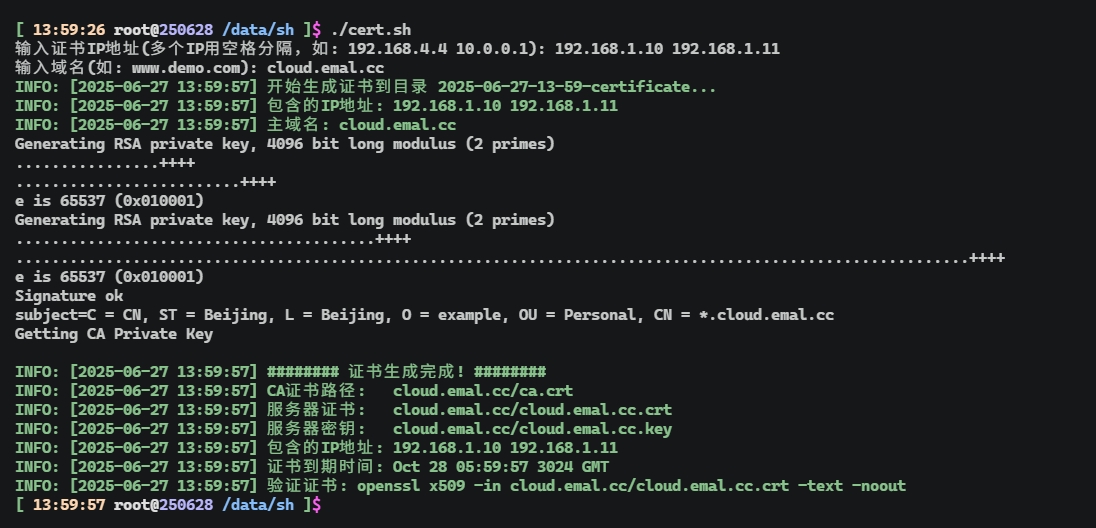
证书生成脚本 创建脚本 cert.shtouch cert.sh#!/usr/bin/env bash #set -x # 输出目录 output_dir=$(date "+%Y-%m-%d-%H-%M")-certificate inst_msg() { # 绿色 echo -e "\033[32mINFO: [$(date +"%Y-%m-%d %H:%M:%S")] $1\033[0m" } create_secret(){ mkdir -p "$output_dir" || { echo "无法创建目录 $output_dir"; exit 1; } # 使用第一个域名作为CA证书的CN local primary_domain="${domains[0]}" openssl genrsa -out "$output_dir/ca.key" 4096 openssl req -x509 -new -nodes -sha512 -days 365000 \ -subj "/C=CN/ST=Beijing/L=Beijing/O=example/OU=Personal/CN=*.${primary_domain}" \ -key "$output_dir/ca.key" -out "$output_dir/ca.crt" openssl genrsa -out "$output_dir/server.key" 4096 # 使用第一个域名作为CSR的CN openssl req -sha512 -new \ -subj "/C=CN/ST=Beijing/L=Beijing/O=example/OU=Personal/CN=${primary_domain}" \ -key "$output_dir/server.key" -out "$output_dir/server.csr" } create_ext(){ # 初始化v3.ext文件 cat > "$output_dir/v3.ext" <<-EOF authorityKeyIdentifier=keyid,issuer basicConstraints=CA:FALSE keyUsage = digitalSignature, nonRepudiation, keyEncipherment, dataEncipherment extendedKeyUsage = serverAuth subjectAltName = @alt_names [alt_names] EOF # 添加域名 local dns_count=1 for domain in "${domains[@]}"; do echo "DNS.${dns_count}=${domain}" >> "$output_dir/v3.ext" echo "DNS.$((dns_count+1))=*.${domain}" >> "$output_dir/v3.ext" # 添加泛域名 ((dns_count+=2)) done # 添加IP地址 local ip_count=1 for ip in "${ips[@]}"; do echo "IP.${ip_count}=${ip}" >> "$output_dir/v3.ext" ((ip_count++)) done } create_zs(){ openssl x509 -req -sha512 -days 365000 \ -extfile "$output_dir/v3.ext" \ -CA "$output_dir/ca.crt" -CAkey "$output_dir/ca.key" \ -CAcreateserial -in "$output_dir/server.csr" \ -out "$output_dir/server.crt" openssl x509 -inform PEM -in "$output_dir/server.crt" -out "$output_dir/server.cert" } create_st(){ create_secret create_ext create_zs } # 检查是否安装了openssl if ! command -v openssl &> /dev/null; then echo "错误: 需要安装openssl才能运行此脚本" exit 1 fi # 读取用户输入 read -p "输入证书IP地址(多个IP用空格分隔,如: 192.168.4.4 10.0.0.1): " ip_input read -p "输入域名(多个域名用空格分隔,如: example.com demo.com): " domain_input # 将输入转换为数组 IFS=' ' read -ra ips <<< "$ip_input" IFS=' ' read -ra domains <<< "$domain_input" # 验证IP地址格式 ip_count=0 for ip in "${ips[@]}"; do if [[ ! "$ip" =~ ^[0-9]+\.[0-9]+\.[0-9]+\.[0-9]+$ ]]; then echo "错误: 输入的IP地址格式不正确: $ip" exit 1 fi ((ip_count++)) done # 验证域名输入 if [[ ${#domains[@]} -eq 0 ]]; then echo "错误: 至少需要输入一个域名" exit 1 fi # 验证域名格式 for domain in "${domains[@]}"; do if [[ ! "$domain" =~ ^[a-zA-Z0-9][a-zA-Z0-9.-]*[a-zA-Z0-9]$ ]]; then echo "错误: 域名格式不正确: $domain" exit 1 fi done inst_msg "开始生成证书到目录 $output_dir..." inst_msg "包含的IP地址: ${ips[*]}" inst_msg "包含的域名: ${domains[*]}" create_st # 生成证书 # 使用第一个域名作为目录名 primary_domain="${domains[0]}" if [ -d "${primary_domain}" ]; then rm -rf "${primary_domain}" fi mv "${output_dir}" "${primary_domain}" # 查询证书到期时间 certificate=$(openssl x509 -in "${primary_domain}/server.crt" -text -noout | grep -A 1 "Not After" | awk -F': ' 'NR==1{print $2}') echo "" inst_msg "######## 证书生成完成! ########" inst_msg "CA证书路径: ${primary_domain}/ca.crt" inst_msg "服务器证书: ${primary_domain}/server.crt" inst_msg "服务器密钥: ${primary_domain}/server.key" inst_msg "包含的IP地址: ${ips[*]}" inst_msg "包含的域名: ${domains[*]}" inst_msg "泛域名: *.${domains[0]}, *.${domains[1]}, ..." inst_msg "证书到期时间: ${certificate}" inst_msg "验证证书命令: openssl x509 -in ${primary_domain}/server.crt -text -noout"
-
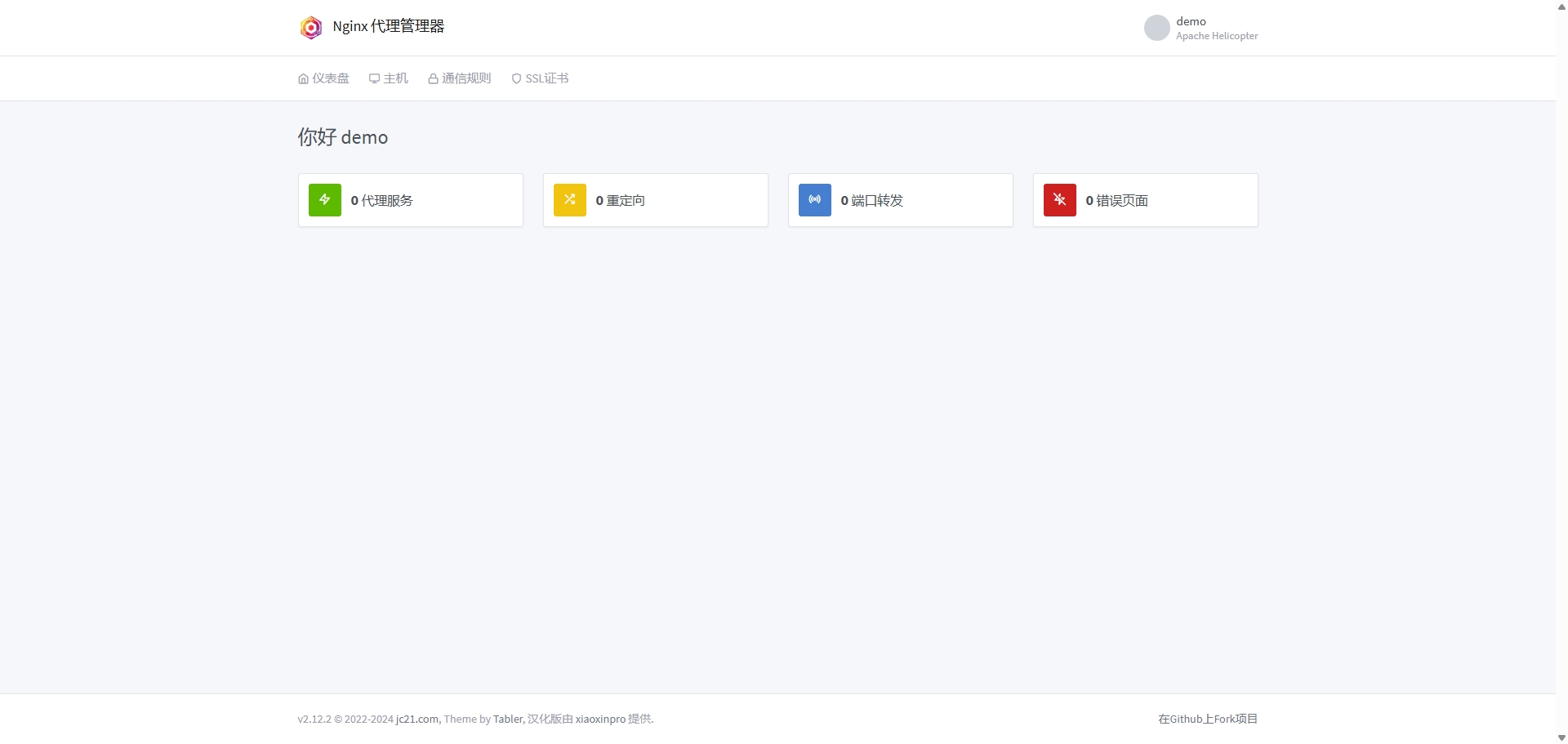
nginx-proxy-manager部署 简介nginx-proxy-manager是一个web配置代理/反向代理的一个工具,方便简洁减少了传统nginx需要配置nginx conf配置,只需要点点点就可以完成转发docker-composeversion: '3' services: app: image: 'chishin/nginx-proxy-manager-zh:latest' restart: unless-stopped ports: - '180:80' # HTTP 端口 - '181:81' # 管理界面端口 - '443:443' # HTTPS 端口 volumes: - ./data:/data # 配置数据持久化 - ./letsencrypt:/etc/letsencryptmkdir -p ./data ./letsencrypt docker-compose up -d或者下载部署# 下载docker-compose wget https://packages.emal.cc/package/server/nginx-proxy-manager.tar.gz tar -zxvf nginx-proxy-manager.tar.gz docker-compose up -d访问访问地址:http://ip:181初始账户:admin@example.com初始密码:changeme配置转发http->https上传或者线上申请证书 创建代理
-
openvpn脚本安装 官方部署文档: https://github.com/hwdsl2/openvpn-install/blob/master/README-zh.md脚本自动安装# 国外服务器 git clone https://gitee.com/kexinzz/openvpn.git bash openvpn.sh --auto # 国内服务器 wget http://packages.emal.cc/package/openvpn/openvpn.sh bash openvpn.sh --autolinux客户端配置yum install openvpn -y openvpn --daemon --cd /etc/openvpn --config client.ovpn --log-append /var/log/openvpn.log### windows客户端# 下载后安装即可 http://packages.emal.cc/package/package/openvpn-install-2.4.9-I601-Win10.exe
-